Key takeaways
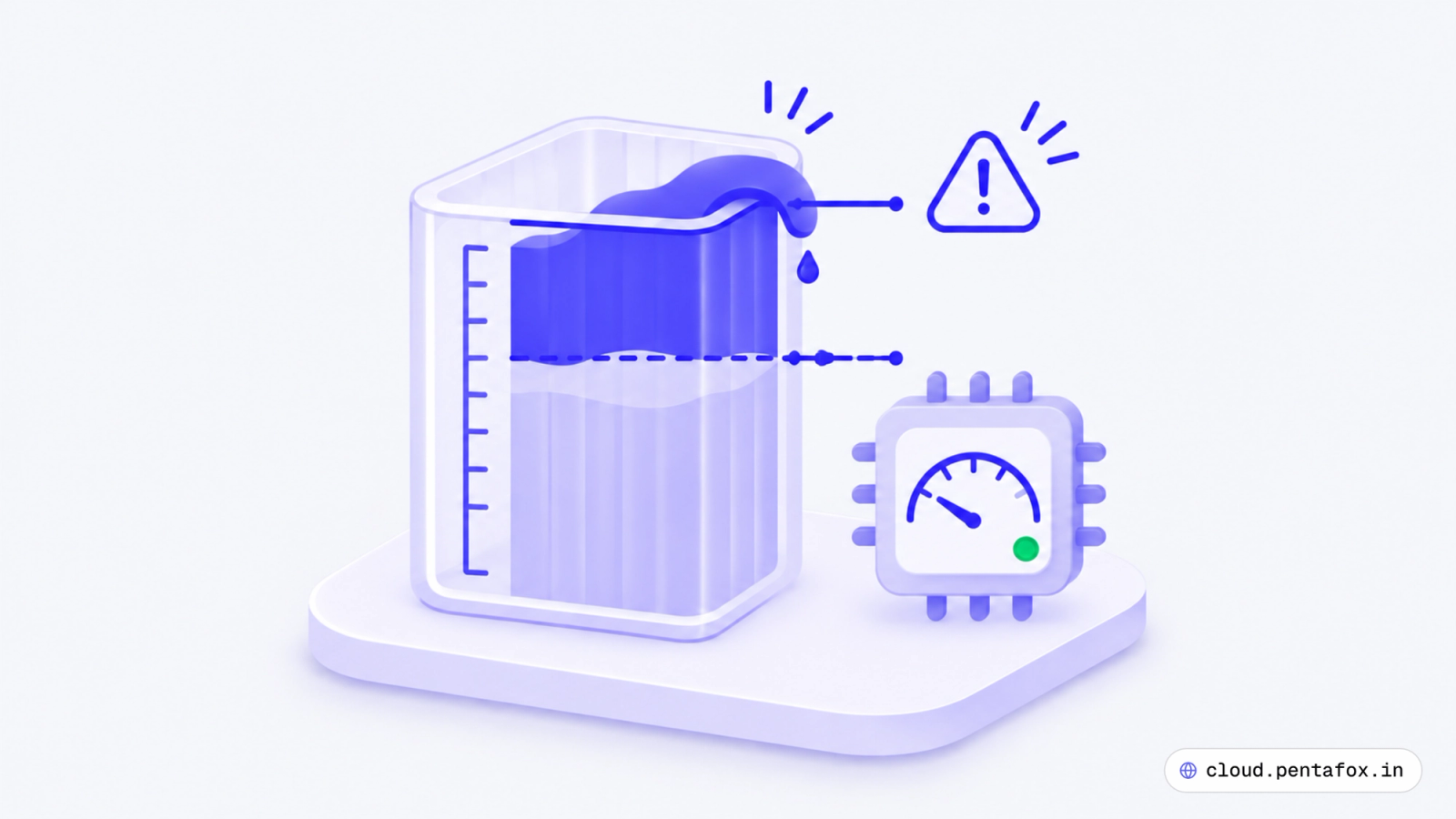
- The memory parameter in an ECS container definition is a hard limit. If the container exceeds it, the container is killed.
- memoryReservation is a soft limit. ECS reserves it for task placement, and the container can use more if memory is available, up to any hard limit.
- CPU works differently from memory. A container that uses too much CPU is slowed down (throttled), not killed.
- An OOM kill usually shows as exit code 137 with a stopped reason such as "OutOfMemoryError: Container killed due to memory usage".
- Most OOM kills come from limits set too low, memory leaks, or a language runtime (such as the JVM or Node.js) configured to use more memory than the container is allowed.
The task that keeps restarting
The following scenario is illustrative.
Your ECS service looks fine, then every few hours a task stops and a new one starts. In the console, the stopped task shows:
- Exit code: 137
- Stopped reason: OutOfMemoryError: Container killed due to memory usage
CPU usage looked normal the whole time. So what happened? To understand it, you need to know how ECS handles memory and CPU, because they behave very differently.
Task-level vs. container-level settings
An ECS task definition can set resources at two levels:
- Task level (cpu and memory): the total resources for the whole task, shared by all its containers. These are required on AWS Fargate, where they also decide the task size you pay for, and optional on EC2.
- Container level (cpu, memory and memoryReservation): limits and reservations for each container inside the task.
On Fargate, the task-level memory is the absolute ceiling for all containers combined.
Hard limit vs. soft limit for memory
Hard limit: memory
The container-level memory parameter is a hard limit. If a container tries to use more memory than this, the Linux kernel's out-of-memory (OOM) killer stops it.
- Use it for: a firm safety cap on a container's memory.
- Risk: set it too low, and normal peaks in usage get the container killed.
Soft limit: memoryReservation
The memoryReservation parameter is a soft limit:
- ECS reserves this amount on the instance when placing the task, guaranteeing it will be available.
- The container can use more than its reservation when spare memory exists, up to its hard limit if one is set, or up to the available memory on the instance if not.
Using both together
You can set both, as long as memory is greater than memoryReservation. For example:
- memoryReservation: 512 MiB, which ECS reserves for placement
- memory: 1024 MiB, the most the container can ever use
This packs tasks efficiently on EC2 instances while still capping a misbehaving container.
A soft-limit trap on EC2
If containers have only soft limits and no hard limit, several containers can grow beyond their reservations at the same time. When the instance runs out of memory, the host's OOM killer steps in, and it may kill containers that were behaving normally.
Fix: set hard limits as well, and leave some memory for the ECS agent and operating system. You can do this with the ECS_RESERVED_MEMORY setting in the ECS agent configuration.
How CPU works, and why it doesn't cause kills
CPU in ECS is measured in CPU units, where 1,024 units equal 1 vCPU.
- Container-level cpu (on Linux) is a relative share. When the instance is busy, containers get CPU time in proportion to their units. When it's idle, a container can use more than its share.
- Task-level cpu is a hard cap on CPU for the whole task.
The key difference from memory:
- Too much memory → the container is killed.
- Too much CPU → the container is throttled. It runs slower, and requests take longer, but it keeps running.
That's why a task can have normal CPU right up until an OOM kill. The problem was memory all along.
Why OOM kills happen
1. Limits set too low
The application simply needs more memory than you gave it, especially during startup, traffic spikes or large batch jobs.
2. Memory leaks
Memory grows slowly and never comes back down. Common causes are unbounded in-memory caches, objects that are never released, or connections that are never closed. The container runs fine for hours, then gets killed. The cycle repeats.
3. The language runtime ignores the container limit
The runtime may plan to use more memory than the container allows:
- Java (JVM): if the maximum heap (-Xmx) is set close to or above the container limit, the JVM's total memory (heap plus metaspace, threads and native memory) exceeds the limit. Modern JVMs are container-aware. Use -XX:MaxRAMPercentage, for example around 70 to 75 percent, instead of a fixed heap that leaves no headroom.
- Node.js: set --max-old-space-size below the container limit.
- Python and others: watch the number of worker processes. Each worker uses its own memory, so 8 workers need roughly 8 times the memory of one.
4. Loading too much into memory at once
Reading a whole large file, report or query result into memory, instead of processing it in chunks or streams, can cause sudden spikes.
5. Sidecars and multiple containers
On Fargate, all containers share the task's memory. A logging or monitoring sidecar that grows can push the whole task over its limit.
How to diagnose an OOM kill
- Check the stopped task. In the ECS console, look at the stopped reason and the exit code. A "Container killed due to memory usage" message with exit code 137 points to an OOM kill.
- Check memory metrics. The service-level MemoryUtilization metric in CloudWatch shows trends. Enable CloudWatch Container Insights for task- and container-level memory. With soft limits on EC2, utilisation above 100 percent of the reservation is possible.
- Look at the pattern. A slow, steady climb suggests a leak. Sudden spikes suggest specific requests, jobs or traffic peaks.
- Check the application logs for what the container was doing just before it was killed.
- Check runtime settings such as the JVM heap, Node.js memory flags or worker counts against the container's limits.
How to fix and prevent it
- Right-size based on data: set limits from observed peak usage plus headroom, not guesswork.
- Use both soft and hard limits on EC2: soft limits for efficient placement, hard limits for safety.
- Configure the runtime to fit the container: heap and memory settings below the limit, with room for non-heap memory.
- Fix leaks rather than hiding them: frequent restarts mask the real problem and cause errors for users.
- Process large data in streams or chunks.
- Alert before the kill: set CloudWatch alarms on high memory utilisation, so you hear about it before tasks start dying.
- Scale out on memory: use ECS service auto scaling on memory utilisation, so load is spread before tasks hit their limits.
- Optional, EC2 only: Linux swap through the maxSwap and swappiness settings can soften brief spikes, but it slows performance and isn't a fix for leaks.
Quick checklist
- Task size (CPU and memory) set based on real usage
- Hard memory limit set for each important container
- Soft limits (memoryReservation) used for efficient packing on EC2
- Memory reserved for the ECS agent and operating system on EC2 instances
- Runtime memory settings (JVM, Node.js, workers) below container limits
- Container Insights enabled for container-level memory metrics
- Alarms on high memory utilisation
- Auto scaling configured on memory or request load
- Stopped tasks reviewed for exit code 137 and OutOfMemoryError
Conclusion
ECS memory and CPU look similar in a task definition but behave very differently. Run out of CPU and your container slows down. Run out of memory and it's killed. Understand hard and soft limits, size them from real data, make your runtime respect the container's limits, and watch memory before it runs out. Then exit code 137 stops being a regular visitor.
Struggling with container restarts or right-sizing? The Pentafox Cloud team helps businesses troubleshoot and optimise Amazon ECS workloads for reliability and cost. Get in touch for a container review.