When a new server is launched, someone has to answer a simple question: how much disk does it need? Most people don't know, so they guess. And they usually guess one of two ways.
Some pick a big number, like 500 GB "just in case." Two years later, the server is using 60 GB, and the business has paid every single month for 440 GB of empty space.
Others pick a small number to save money. Then one night, log files or a backup job quietly fill the disk. The database stops writing, the website throws errors, and someone gets a phone call at 2 AM.
Both mistakes come from the same idea: that storage size must be decided on day one. It doesn't. In the cloud, you can start small and let storage grow automatically when it is actually needed.
The idea: start small, grow at 70%
The approach is simple. Give the server only the storage it needs today, plus a comfortable margin. Then watch how full the disk is. When usage reaches 70%, add more space automatically. No ticket, no late-night emergency, no guessing.
You pay for what you use now, and the system makes room before it runs out.
Why 70% and not 90%?
It is tempting to wait until the disk is almost full. The problem is that growing a disk is not instant, and cloud providers limit how often you can do it.
On AWS, after you change the size of an EBS volume (the disk attached to an EC2 server), you must wait at least six hours before you can change it again. If you only react at 90% and a sudden spike of logs arrives, the disk can fill up before you are allowed to grow it a second time.
Triggering at 70% leaves a 30% buffer. That buffer covers the waiting period, sudden bursts, and the time the resize itself takes.
How it works on AWS
Different AWS services handle this differently. Knowing which one you use matters.
Databases on Amazon RDS. RDS has storage autoscaling built in. You turn it on and set a maximum storage limit. AWS then grows the storage for you when free space runs low. One detail to know: RDS decides for itself when to grow, at roughly 10% free space. You can't set it to 70%. The maximum limit is the most important setting, because it stops runaway growth.
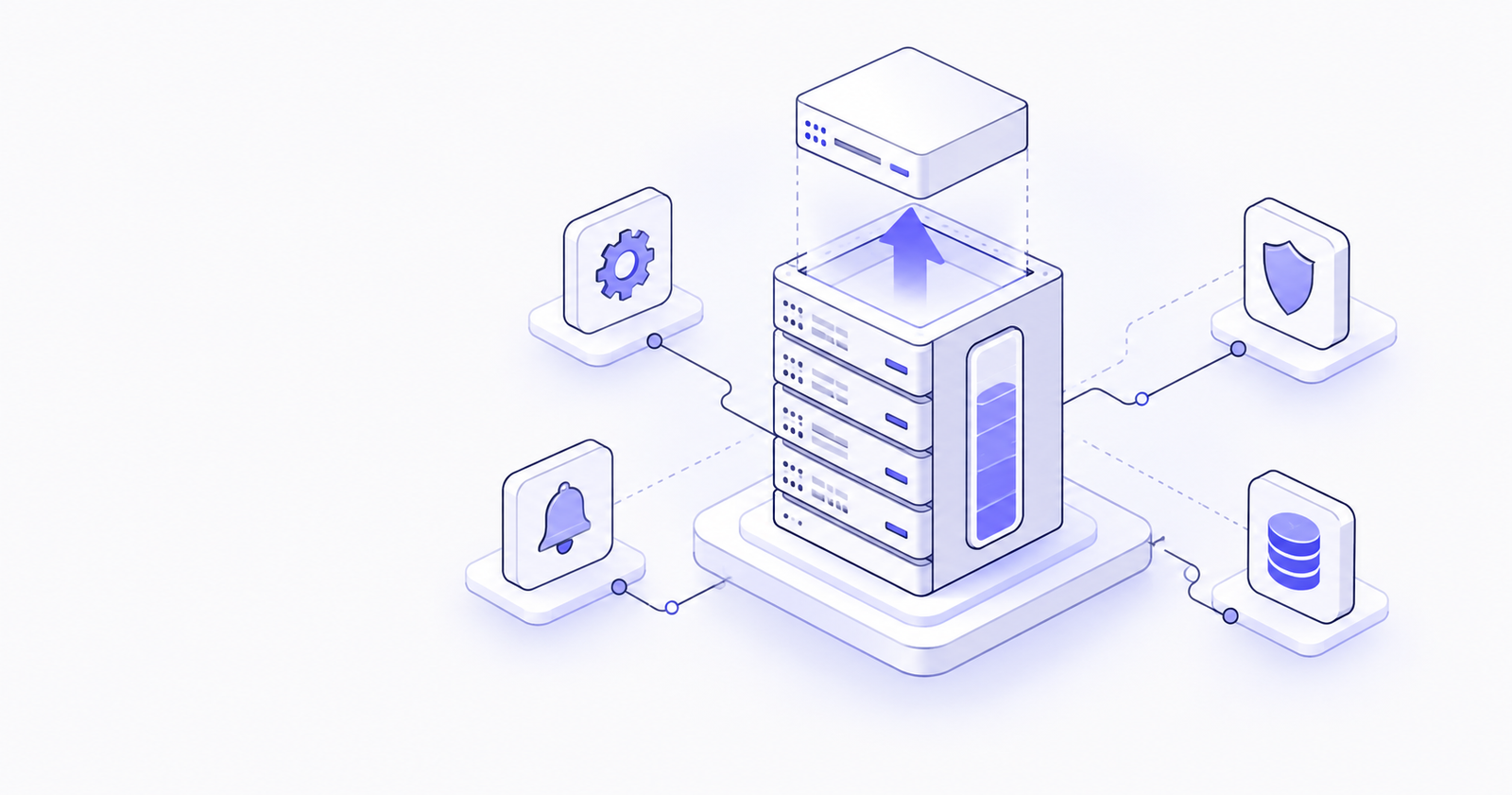
Servers on EC2 with EBS volumes. EBS disks do not grow on their own. You build the automation with a few standard AWS pieces:
- The CloudWatch agent on the server reports how full the disk is.
- A CloudWatch alarm fires when usage passes 70%.
- The alarm triggers a Lambda function or an SSM Automation document that increases the volume size.
- The same automation extends the partition and file system inside the server, so the operating system can actually use the new space.
Step 4 is the one most teams forget. Growing the EBS volume only makes the disk bigger. Until the partition and file system are extended (with tools like growpart, resize2fs or xfs_growfs), the server still sees the old size.
Shared files on EFS and objects on S3. These already grow and shrink with your data. There is nothing to provision. If your workload can use them, they are often the simplest answer.
Other clouds follow similar rules. Azure managed disks and Google Cloud persistent disks can be made larger, but not smaller.
How much should it grow each time?
A fixed step, like "add 10 GB," works badly. On a 20 GB disk it is a big jump, and on a 1 TB disk it barely helps. A better rule is to grow by 20% of the current size, with a minimum step of 10 GB so small disks don't resize again and again.
So the increase always matches the size of the disk. A 100 GB disk grows by 20 GB to 120 GB. A 500 GB disk grows by 100 GB to 600 GB. After each step, usage drops back below 60%, which gives the disk time to settle before the next trigger. For very large disks, you can also cap a single step (for example, at 200 GB) so one resize never adds more cost than you expect.
Does increasing the size cause downtime?
In most cases, no. The server keeps running while the disk grows.
- EBS volumes can be resized while attached to a running EC2 instance. The volume then enters an "optimizing" state, which can take from a few minutes to several hours on large volumes. The disk stays usable the whole time, but performance can be slightly lower.
- Extending the file system with
growpart,resize2fsorxfs_growfsalso works online on modern Linux. On Windows, the volume can be extended in Disk Management without a restart. - RDS storage autoscaling runs in the background with no downtime, although the database may be a little slower while storage is being optimized.
- Azure and Google Cloud can also grow most disks online, but some Azure disk types or configurations still need the VM stopped first. Check the rules for your disk type before automating.
Two cases can still cause trouble. Older EC2 instance generations may need a stop and start before the operating system sees the new size. And if the disk is already 100% full, services may have failed before the resize finishes. That is exactly why the trigger sits at 70%, not at 99%.
The part nobody mentions: storage only grows
Automatic growth is a one-way street. EBS volumes and RDS storage can't simply be shrunk back to a smaller size. Reducing them means building a new, smaller volume or database and moving the data across.
This changes how you should think about the setup. If a bug writes gigabytes of debug logs overnight, automation will happily grow the disk to fit them. The logs can be deleted in the morning, but the bill for the larger disk stays.
That is why automatic growth must come with guardrails.
Guardrails that make it safe
- Set a hard maximum. Every setup needs a ceiling. On RDS this is the maximum storage threshold. For EBS automation, the script should refuse to grow past a limit you choose.
- Alert a human every time. An automatic resize should also send a message to your team. Sudden growth is often a sign that something is wrong, not a sign of business success.
- Fix the cause first. Log rotation, backup retention rules, and cleanup of old files should be in place before autoscaling. Autoscaling is the safety net, not the plan.
- Watch for abuse. Uploads, logs and temporary files can be filled on purpose. A disk that grows without limits turns a small attack into a large bill.
- Test it once. Fill a test disk past 70% and confirm the whole chain works, including the file system resize, before you rely on it in production.
A simple setup to start with
For most small applications, a sensible starting point looks like this. Size the disk at about twice your current usage. Grow by 20% (minimum 10 GB) whenever usage passes 70%. Cap the maximum at a number your budget can accept. Send every resize event to your team's chat or email.
This alone removes most "disk full" outages and most wasted storage spend.
You don't need to predict the future to size your storage. Start with what you need, let it grow at 70%, put a ceiling on it, and make sure someone is told when it happens. Your servers stay up, and your cloud bill reflects what you really use.